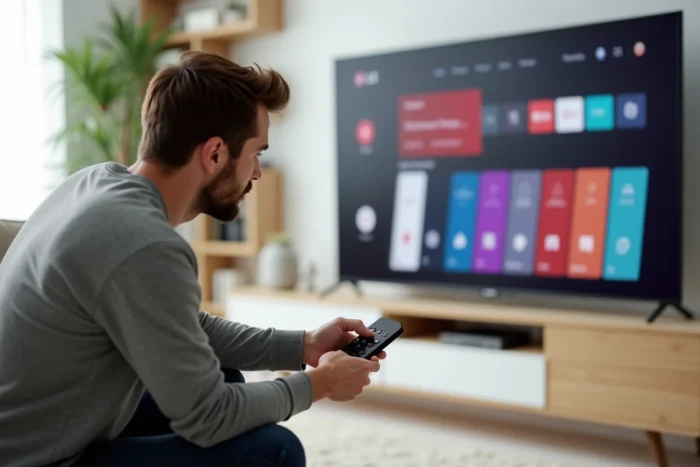
WebOS is a proprietary LG system, derived from the old Palm/HP webOS, which does not share any codebase with Android. The Google Play Store cannot run natively on webOS, and there is no official method to integrate it.
Guides that describe a “step-by-step” installation via APK omit a crucial technical point: an APK file is a package compiled for the Android virtual machine (ART/Dalvik), which is completely incompatible with the JavaScript runtime and application framework of webOS.
Technical incompatibility between webOS and the Android runtime
The core of webOS is based on a lightweight Linux coupled with a web rendering engine (Chromium) for displaying applications. The apps distributed by the LG Content Store are developed in HTML, CSS, and JavaScript, or through encapsulated web frameworks.
Android, on the other hand, runs its applications in an ART environment that interprets Java/Kotlin bytecode. An APK placed on a webOS television will not find the system libraries, Google Play Services APIs, or the necessary Android graphical framework for its execution. The absence of these layers renders any installation attempt inoperative, even when activating a hypothetical developer mode.
The webOS developer mode exists, but it is intended for deploying packaged web applications via the LG webOS TV SDK, not for sideloading Android packages. We recommend understanding this distinction well before following a tutorial that could lead to downloading potentially infected APK files from third-party sources. A detailed guide also helps clarify the actual steps to install the Play Store on LG webOS TV and the associated limitations.
LG Content Store and LG ThinQ app: the real ecosystem of webOS
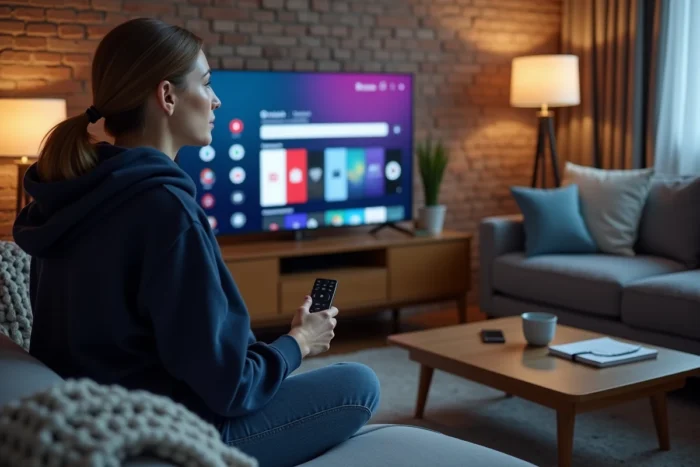
LG has built its own application catalog, the LG Content Store, accessible directly from the webOS home screen. It features major streaming platforms (Netflix, Disney+, Prime Video, Apple TV+, YouTube, Molotov), music apps, and a few utilities. The catalog is more limited than that of the Play Store, but it covers the vast majority of common uses on a television.
The LG ThinQ app, available on smartphones (Android and iOS), serves as an advanced remote control and gateway to configure the television. It also allows content to be streamed from a phone to the TV via the screen sharing function. However, ThinQ does not allow transferring or installing Android applications directly on the television.
Searching for and installing an app via the Content Store
- Press the Home button on the remote, then navigate to the bottom app bar and select “Apps”
- Use the built-in search bar to find the desired app by its exact name
- Select the app from the results, then click “Install” to download it and add it to the home bar
If an app does not appear in the Content Store, it means its publisher has not developed a webOS version. No user-side manipulation can bypass this absence.
Concrete alternatives for accessing Android apps on an LG television
The most reliable solution remains to add an external device running Android TV. A dongle like the Chromecast with Google TV or an Android TV box (Xiaomi TV Box, NVIDIA Shield) plugs into an HDMI port on the LG television and provides access to the entire Play Store.
This approach has several advantages over hypothetical sideloading:
- The external device is Google-certified, ensuring access to Google Play Services, security updates, and Widevine L1 DRM (necessary for HD/4K streaming on most platforms)
- The LG television retains its firmware intact, with no risk of bricking or losing warranty due to unsupported manipulations
- Switching between webOS and the Android device is done by simply changing the HDMI source
- Updates for the Play Store and applications are automatically managed by Google
For users who only wish to occasionally stream content from an Android phone, the built-in Screen Share (Miracast) function in webOS allows projecting the smartphone screen onto the television without additional hardware. Latency is noticeable, making this option unsuitable for gaming, but sufficient for video or browsing.
Risks associated with sideloading APKs on a webOS television
Some tutorials suggest downloading APK files from third-party sites and transferring them via USB to the television. Even in the theoretical case where an APK could be “opened” on webOS (which does not work for the reasons described above), this practice exposes users to real risks.
APK files redistributed outside the Play Store do not benefit from any Google Play Protect verification. Modified APKs may contain malicious code capable of exploiting vulnerabilities in the underlying system. On a television connected to the home network, a compromise can serve as an entry point to other devices in the household.
The webOS developer mode, when activated, opens SSH access to the television. Advanced users exploit it to install Homebrew Channel, a community application manager. This method allows adding certain tools (alternative browsers, IPTV players) but does not enable running Android APKs. Homebrew Channel remains an unofficial project: any modification of the system may void the manufacturer’s warranty.
An LG television running webOS provides access to a sufficient application catalog for most television uses. For cases where a specific Android application is essential, a certified Android TV box remains the cleanest and safest technical answer.