
Archiving an order on Amazon removes the purchase from the main list displayed in “Your Orders.” However, the order does not disappear: it remains accessible in a dedicated section that can be consulted at any time. Between archiving, deleting browsing history, and managing notifications, each action covers a different scope, and none alone is sufficient to guarantee the confidentiality of a purchase.
Archiving, hiding, and deleting on Amazon: what each action really covers
| Action | What is hidden | What remains visible | Mobile access |
|---|---|---|---|
| Archive an order | Removed from the main list “Your Orders” | Visible in “Archived Orders” on browser, confirmation emails, delivery notifications | Not available in the app, possible via the site in desktop mode on smartphone |
| Delete browsing history | Items viewed before purchase | The order itself, already generated recommendations | Available in the app and browser |
| Disable related recommendations | Suggestions based on a specific purchase | The order in history, emails, push notifications | Partial depending on product categories |
| Create a separate account or profile | All purchase activity of the second account | Nothing on the main account (except visible Prime Family sharing) | Available everywhere |
This table highlights a point that most guides overlook: archiving only covers a fraction of the trace left by a purchase. Confirmation emails, push notifications, and algorithmic recommendations continue to exist independently.
For those experiencing difficulties with the procedure, a detailed guide explains how to archive or hide an Amazon order when the option seems absent from the interface.
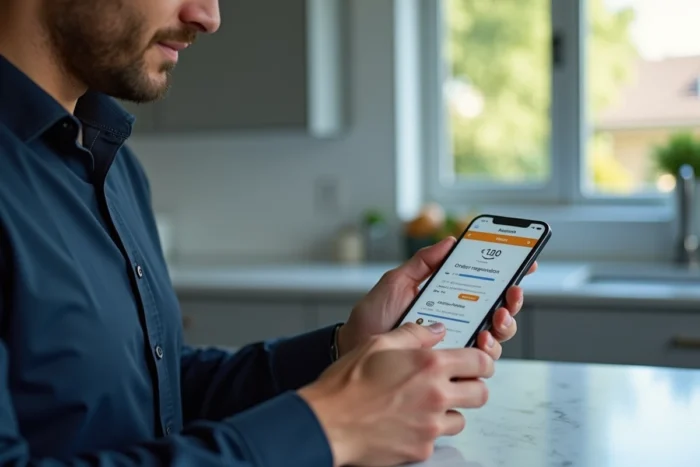
Archiving an Amazon order from a smartphone: the problem with the mobile app
The Amazon app does not offer an archiving button. This is the most common source of confusion. On mobile, the only functional method is to open the browser (Safari, Chrome, Firefox), go to amazon.fr, and then enable “desktop site” or “computer version” in the browser settings.
Once the desktop site is loaded, the procedure matches that of a computer:
- Go to “Your Orders” from the account menu
- Locate the order to archive and click on “Archive Order” under the purchase details
- The order then moves to the “Archived Orders” section, accessible from Account > Archived Orders
Archiving is not irreversible: an order can be unarchived at any time from this same section. Amazon limits the number of orders archived simultaneously, which prevents using this function to hide the entirety of a history.
The peripheral traces that Amazon archiving does not remove
Archiving affects the display of the order list. It does not touch parallel channels that signal a purchase. Ignoring these traces makes archiving largely ineffective if the goal is to preserve a surprise or protect privacy on a shared account.
Confirmation emails and delivery notifications
Each order generates a confirmation email sent to the account’s address. Archiving the order does not delete this email. If the mailbox is accessible by another household member, the gift or purchase remains traceable. The direct solution: manually delete the relevant emails and empty the trash.
The Amazon app’s push notifications signal the progress of the package (shipped, out for delivery, delivered). On a shared or visible phone, these alerts appear on the lock screen. Disabling them is done through the notification settings of Amazon in the app, under the delivery alerts section.
Browsing history and Amazon recommendations
Amazon uses browsing history to feed the “Recently Viewed Items” sections and personalized recommendations on the homepage. An item viewed before purchase may appear in these suggestions even after archiving the order.
To clean this trace, you must access “My Account,” then “Browsing History,” and delete the relevant items. An option also allows you to pause browsing history, which prevents Amazon from recording future views.
Voice assistants and connected devices
On Echo devices with Alexa, certain voice notifications may mention the status of a delivery. If a shared device is set up on the same account, disabling delivery notifications in the Alexa settings completes the archiving process.

Separate account or distinct Amazon profile: the only structuring method
Archiving, deleting browsing history, and managing notifications form a layered approach, with each action covering a specific channel. In contrast, a distinct Amazon account isolates all purchase activity in a single action.
Amazon allows sharing Prime benefits with another account via Amazon Household (or Prime Family depending on markets). Each member retains their own order history, recommendations, and notifications. The main account does not see the purchases of the secondary account.
- Create a second Amazon account with a different email address
- Link this account to Prime sharing to benefit from free shipping
- Make confidential purchases from this second account
- Orders, browsing history, and recommendations remain compartmentalized
This method eliminates the need to manually clean each trace after a purchase. It remains the most reliable when multiple people regularly use the same devices.
Archiving remains useful for a one-time purchase, such as a gift, when creating a second account seems disproportionate. For regular use with privacy needs, separating accounts addresses the problem at the source rather than symptom by symptom.